
Chapter 1: Meet the Machine
Meet the Machine 🖥️
Section titled “Meet the Machine 🖥️”Every computer, big or small, has the same jobs inside.
Look around the room. Is there a laptop on a desk? A tablet in a backpack? A phone in a grown-up’s pocket? What about the screen on the microwave or the thermostat on the wall? Every one of those is a computer. They come in different shapes and sizes, but here is the surprise of this chapter: inside, they all do the very same jobs.
Once you know those jobs, no machine can confuse you. You can pick up a device you have never seen before and figure out how it works, just like a real computer technician.
In this chapter, we will meet the kinds of computers, follow information as it goes in and comes back out, explore the doorways called ports, and discover how computers shrank from the size of a room to the size of your hand. Let’s get started!
1.1 — Kinds of Computers and What They Do Best 💻
Section titled “1.1 — Kinds of Computers and What They Do Best 💻”A computer is a machine that follows instructions to help people do things: write a story, play a game, call Grandpa, or find the way to the zoo. Any machine like that is called a devicedevice: Any machine that runs on electricity and follows instructions, like a phone, tablet, laptop, or smart TV.. Devices come in many shapes, and each shape is best at something different.
Shoes for Every Job
Section titled “Shoes for Every Job”Think about shoes. Sneakers are best for running, boots are best for puddles, and slippers are best for cozy mornings. They are all shoes, but each kind fits a different job. Computers work the same way.
| Kind of Computer | What It Is Best At |
|---|---|
| 🖥️ Desktop | Stays on a desk. Big, strong, and great for powerful games, video editing, and long projects. |
| 💻 Laptop | Folds up like a book. Great for schoolwork you carry from room to room. |
| 📱 Tablet | A flat touchscreen. Great for reading, drawing, and watching videos. |
| 📞 Smartphone | Fits in a pocket. Great for messages, photos, maps, and calls. |
| ⌚ Smartwatch | Sits on a wrist. Great for timers, step counts, and quick alerts. |
Hidden Computers
Section titled “Hidden Computers”Some computers are so quiet you might not notice them. A smart TV, a game console, a robot vacuum, a car, a doorbell with a camera, and even some refrigerators have small computers tucked inside. Devices like these, which connect to the internet to do their jobs, are often called smart devices.
Smart devices are helpful because they collect and share information. A smart thermostat notices when the house gets cold and tells the heater to turn on. A fitness watch counts steps and sends them to a phone app. A doorbell camera sends a video to a phone when someone rings. Collecting and sharing information is their whole job, so it is smart for families to know what each device collects and who can see it.
The Big Idea
Section titled “The Big Idea”Here is the most important idea in this chapter: no matter the shape or size, every computer does the same four jobs. It takes information in, works on it, remembers things, and sends answers back out. A giant desktop and a tiny watch are like a school bus and a scooter. They are very different sizes, but both are built to get you somewhere.
1.2 — Input, Processing, and Output 🔁
Section titled “1.2 — Input, Processing, and Output 🔁”Using a computer is like playing catch. You toss information in, the computer works on it, and it tosses an answer back out. Those steps have special names, and they are some of the most important words in this book.
Input: The Computer’s Senses
Section titled “Input: The Computer’s Senses”inputinput: Information going INTO a computer, like taps, clicks, typed letters, pictures, or your voice. is any information going into the computer. Input devices are like the computer’s senses, its eyes, ears, and fingertips. Here are some you use all the time:
- A keyboard sends letters and numbers in.
- A mouse or touchpad sends clicks and pointer moves in.
- A touchscreen sends finger taps and swipes in.
- A microphone sends your voice in.
- A camera sends pictures in.
Output: The Computer’s Voice
Section titled “Output: The Computer’s Voice”outputoutput: Information coming OUT of a computer, like pictures on a screen, sound from speakers, or a printed page. is any information coming out of the computer. Output devices are like the computer’s voice, its way of talking back to you. A screen shows pictures and words. Speakers and headphones play sound. A printer puts words and pictures on paper. Even a buzz from a phone is output.
The words help you remember: input goes IN, and output comes OUT.
The Middle Step: Processing
Section titled “The Middle Step: Processing”What happens between input and output? The computer follows its instructions to figure out the answer. That middle step is called processingprocessing: The computer following its instructions to work on input and decide what the output should be.. When you press the jump button in a game, that is input. The computer processes it by checking its instructions for jumping and figuring out where your character should land. Then your character leaps on the screen. That is output.
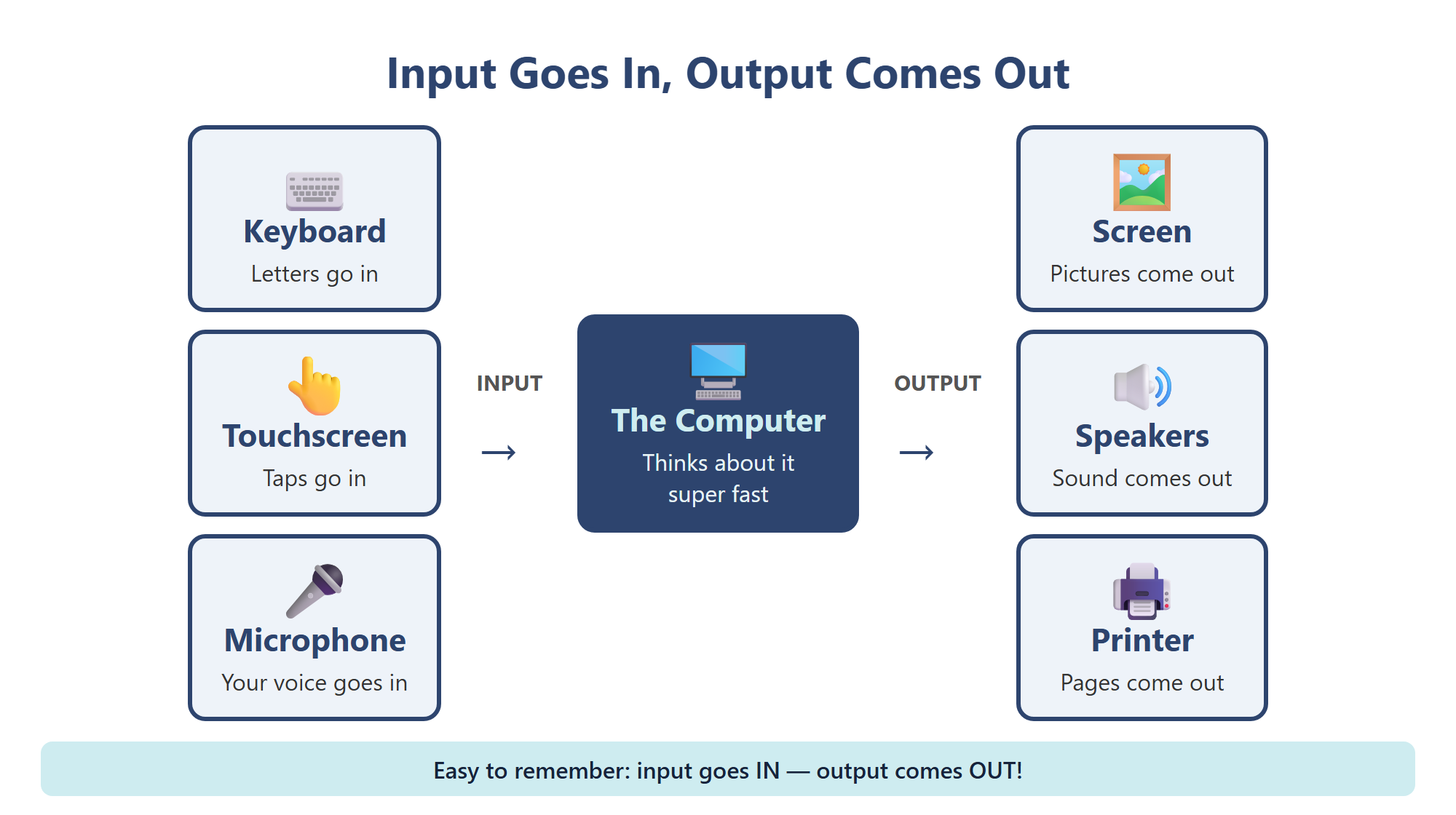
This input, processing, and output loop happens over and over, faster than you can blink. Tap, answer. Type, answer. Ask, answer.
Some parts do two jobs at once. A touchscreen is input when you tap it and output when it shows you a picture. A headset with a microphone lets you listen (output) and talk (input) at the same time.
1.3 — Ports, Plugs, and Wireless Doorways 🔌
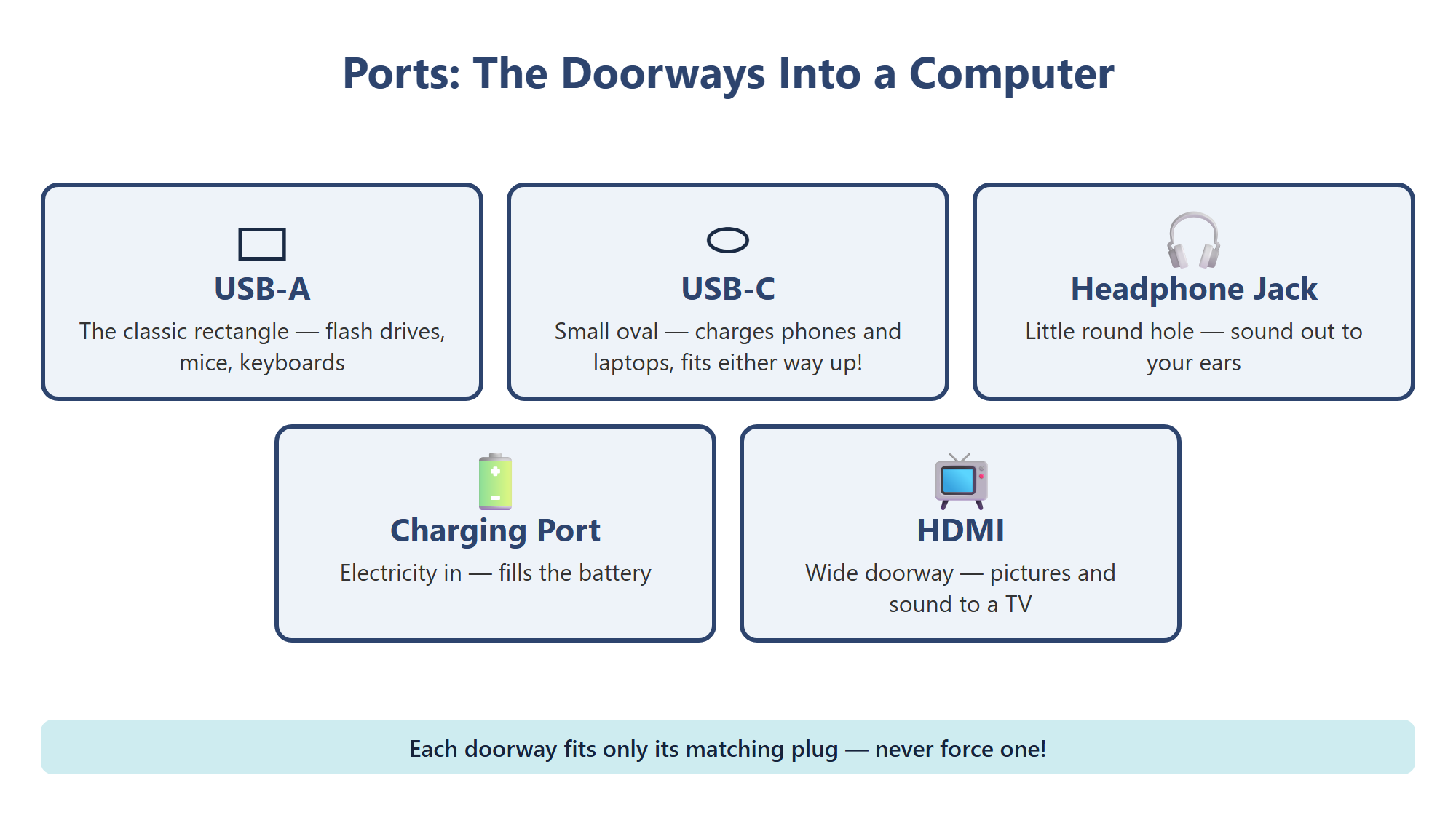
Section titled “1.3 — Ports, Plugs, and Wireless Doorways 🔌”Look closely at the edges of a laptop or the bottom of a phone. Those little holes and slots are not decorations. Each one is a portport: A special opening on a device where you plug in a cable, a charger, or another device., a doorway where power or information can go in and out.
Every Door Has a Shape
Section titled “Every Door Has a Shape”Think of a computer as a house. A house has a front door for people, a mail slot for letters, and maybe a pet door for the dog. Each door has a shape that fits its job. Ports are the same: each port fits only its matching plug.
| Port | What It Does |
|---|---|
| USB-A | The classic rectangle. Connects flash drives, mice, and keyboards. |
| USB-C | The small rounded oval. Charges many phones, tablets, and laptops, and fits either way up. |
| HDMI | The wide doorway that sends pictures and sound to a TV or big monitor. |
| Headphone jack | The small round hole for wired headphones. |
| Power port | Where electricity comes in to charge the battery or run the machine. |
The two USB ports belong to one family. USBUSB: A common family of ports and plugs used to connect and charge many devices. USB-C is the newest, oval-shaped kind. plugs are so common that many new phones, including iPhones since 2023, now charge with USB-C.
Doorways You Can’t See
Section titled “Doorways You Can’t See”Not every doorway is a hole. Many devices connect wirelessly, using invisible radio signals. Bluetooth connects things that are close together, like wireless headphones, a mouse, or a game controller. Wi-Fi connects devices to the internet, and you will learn all about it in Chapter 3.
Every Doorway Needs a Guard
Section titled “Every Doorway Needs a Guard”Here is something real technicians know: every connection is a way in. A doorway that lets your headphones connect could also let something unwanted connect. That is why careful users follow a few rules:
- Never plug in a flash drive or cable you found. Give it to a teacher instead. It could carry a harmful program.
- Ask a grown-up before pairing a new Bluetooth device or joining a new Wi-Fi network.
- Turn off Bluetooth when you are not using it, if a grown-up says that is the rule for your device.
1.4 — Same Jobs, Different Shapes 📱
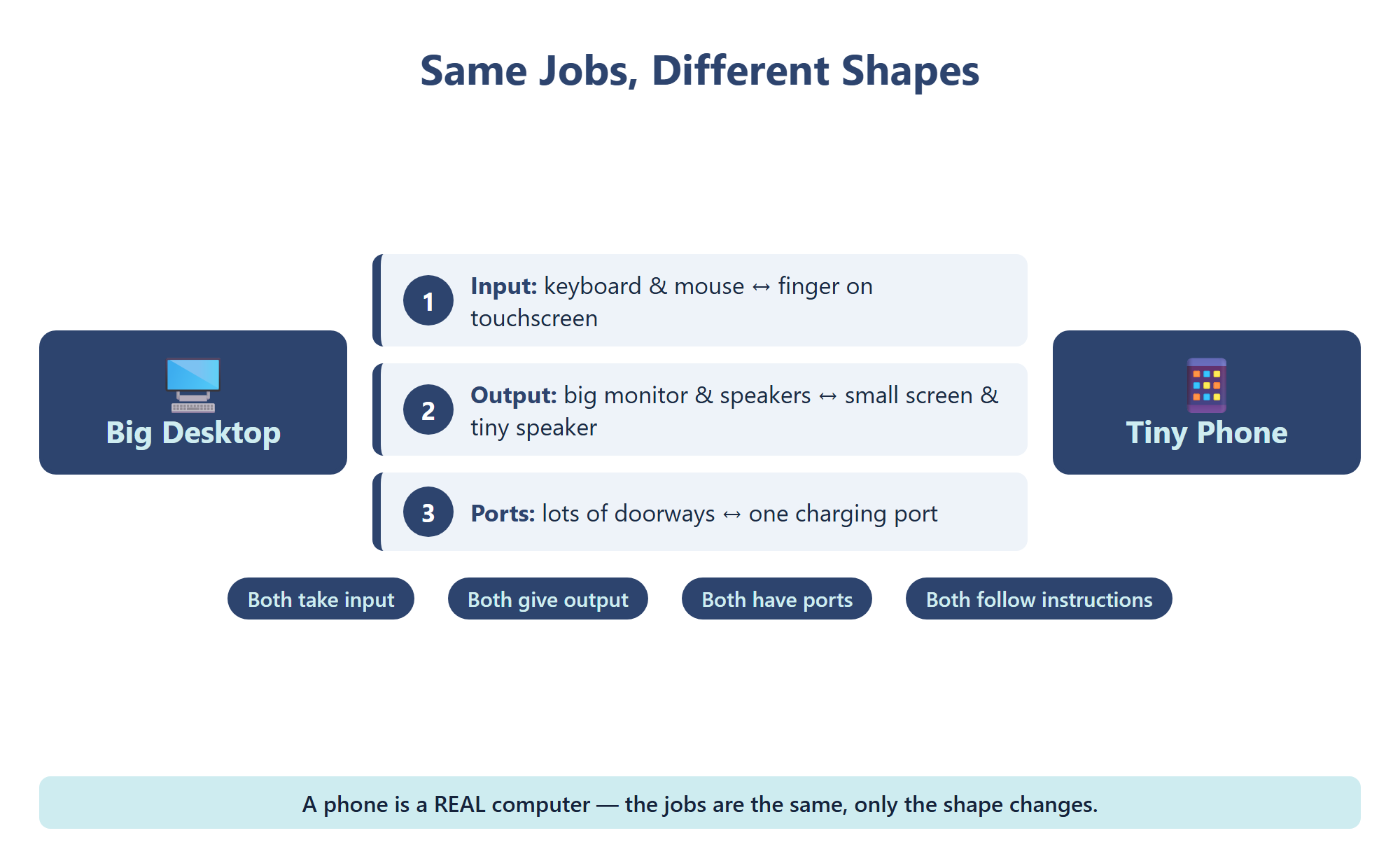
Section titled “1.4 — Same Jobs, Different Shapes 📱”A smartphone is not a little gadget. A smartphone is a real computer, folded into a tiny shape. Let’s prove it by comparing it with a big desktop computer.
The Same Jobs, Side by Side
Section titled “The Same Jobs, Side by Side”- A desktop has a keyboard for input. A phone shows a keyboard on its touchscreen.
- A desktop has a mouse for pointing. A phone uses your finger.
- A desktop has a monitor for output. A phone’s screen does the same job, only smaller.
- A desktop has speakers. A phone has a tiny speaker near your ear.
- A desktop has ports. A phone has a charging port, and sometimes a headphone jack.
Same jobs. Different shapes.
From Room-Sized to Pocket-Sized
Section titled “From Room-Sized to Pocket-Sized”Computers were not always small. One of the first electronic computers, called ENIAC, was finished in 1945. It filled a whole large room and weighed about as much as five elephants. People had to plug in cables by hand to give it new instructions.
Over the years, engineers learned to make computer parts smaller, faster, and cheaper. In 1969, astronauts landed on the Moon with help from a guidance computer that was much less powerful than the phone in a grown-up’s pocket today. In 2007, smartphones with big touchscreens arrived, and soon billions of people carried a computer everywhere they went. These machines changed the world: how people learn, shop, get directions, call a doctor, and stay close to faraway family.
Thinking Like a Technician
Section titled “Thinking Like a Technician”Because every computer has the same jobs, you never have to start over with a new device. Meet a smartwatch? Ask three questions: Where does input go in? Where does output come out? Where are the doorways? A techniciantechnician: A person whose job is understanding, setting up, and fixing machines like computers. uses this exact trick every day. When technicians meet a device they have never seen, they don’t panic. They look for the inputs, the outputs, and the ports, because those jobs are always there.
Chapter 1 Activity: Label-the-Device 🏷️
Section titled “Chapter 1 Activity: Label-the-Device 🏷️”Your Mission: Think like a technician. You will make a labeled diagram of a real device, showing its inputs, outputs, and doorways.
Part 1: Pick and Draw
Section titled “Part 1: Pick and Draw”With your teacher’s or a grown-up’s permission, choose a real device: a classroom tablet, a laptop, a game controller, or a phone. Draw a big, simple picture of it on paper. Technicians care about parts, not art, so don’t worry about making it pretty.
Part 2: Label the Jobs
Section titled “Part 2: Label the Jobs”Look closely at the real device. There is no need to turn it on. Draw arrows and label every input (buttons, touchscreen, camera, microphone), every output (screen, speakers, lights), and every doorway (charging port, USB, headphone jack, and any wireless connection you know it uses). Find at least six labels.
Part 3: Then and Now
Section titled “Part 3: Then and Now”On the back of your paper, draw a quick sketch of a room-sized computer like ENIAC next to your device. Write one sentence about what changed and one sentence about what stayed the same. Then teach your diagram to a partner: explain one input, one output, and one doorway.
Key Concepts Checklist
Section titled “Key Concepts Checklist”- I can name four kinds of computers and what each is best at
- I know smart devices collect and share information
- I can explain input, processing, and output with an example
- I know a touchscreen can be both input and output
- I can name three ports and what each one does
- I know never to force a plug or use a cable or flash drive I found
- I can explain why a phone is a real computer
- I can describe how computers changed from room-sized to pocket-sized