
Chapter 4: Keeping Computers Healthy and Safe
Keeping Computers Healthy and Safe 🩺
Section titled “Keeping Computers Healthy and Safe 🩺”A little care stops big problems.
You know what is inside a computer and how computers talk to each other. Now it is time to learn how to take care of one. Computers are a little like teeth or bicycles. A tiny bit of care every week stops big, expensive problems later.
Taking care of a computer means two things. The first is keeping it healthy: updated, charged safely, and not stuffed full. The second is keeping it safe: locking your accounts and not getting tricked. Neither one is scary. They are habits, just like brushing your teeth.
In this chapter, we will learn why devices keep asking to update, how passwords and passkeys work like keys, how to spot messages and pop-ups that try to trick you, and how to care for batteries and storage. These are the same jobs that professional IT workers do every day, and you can start doing them now.
4.1 — Updates Are Vitamins 💊
Section titled “4.1 — Updates Are Vitamins 💊”Has a device ever popped up “Update available. Restart now?” right in the middle of your game? It feels annoying, but that message is one of the most important things your computer will ever say to you.
What’s Inside an Update
Section titled “What’s Inside an Update”An updateupdate: A package of fixes and improvements that a company sends to a device or app to repair problems and keep it safe. is a package of fixes sent by the company that made your device or app. Think of updates like vitamins and checkups. You don’t take vitamins because you are sick. You take them so you stay healthy. An update usually holds three things:
- Repairs for parts of a program that were broken or acting weird.
- Safety patches that close weak spots, like fixing a hole in a fence.
- New features, like a new tool or a fresh look.
Every App Has Weak Spots
Section titled “Every App Has Weak Spots”Apps and operating systems are written by people, and people make mistakes. Some mistakes create a vulnerabilityvulnerability: A weak spot in a program or device that someone could use to cause harm or sneak in., a weak spot that someone could use to sneak in or cause harm. Every app can have vulnerabilities, even popular ones from big companies. That is not a reason to be afraid. It is a reason to update.
When a company finds a weak spot, it builds a safety patch and sends it out in an update. If your device never updates, the hole stays open. Attackers know about old holes, so out-of-date devices are easier targets. Out-of-date apps can also stop working, crash more often, or lose features. A device that never updates is like a house with a broken window that never gets fixed.
Why the Restart?
Section titled “Why the Restart?”Remember the workbench from Chapter 2? Programs run in memory. A restart clears the bench, swaps in the new, fixed pieces from storage, and starts fresh. Without the restart, some old, broken pieces may still be running.
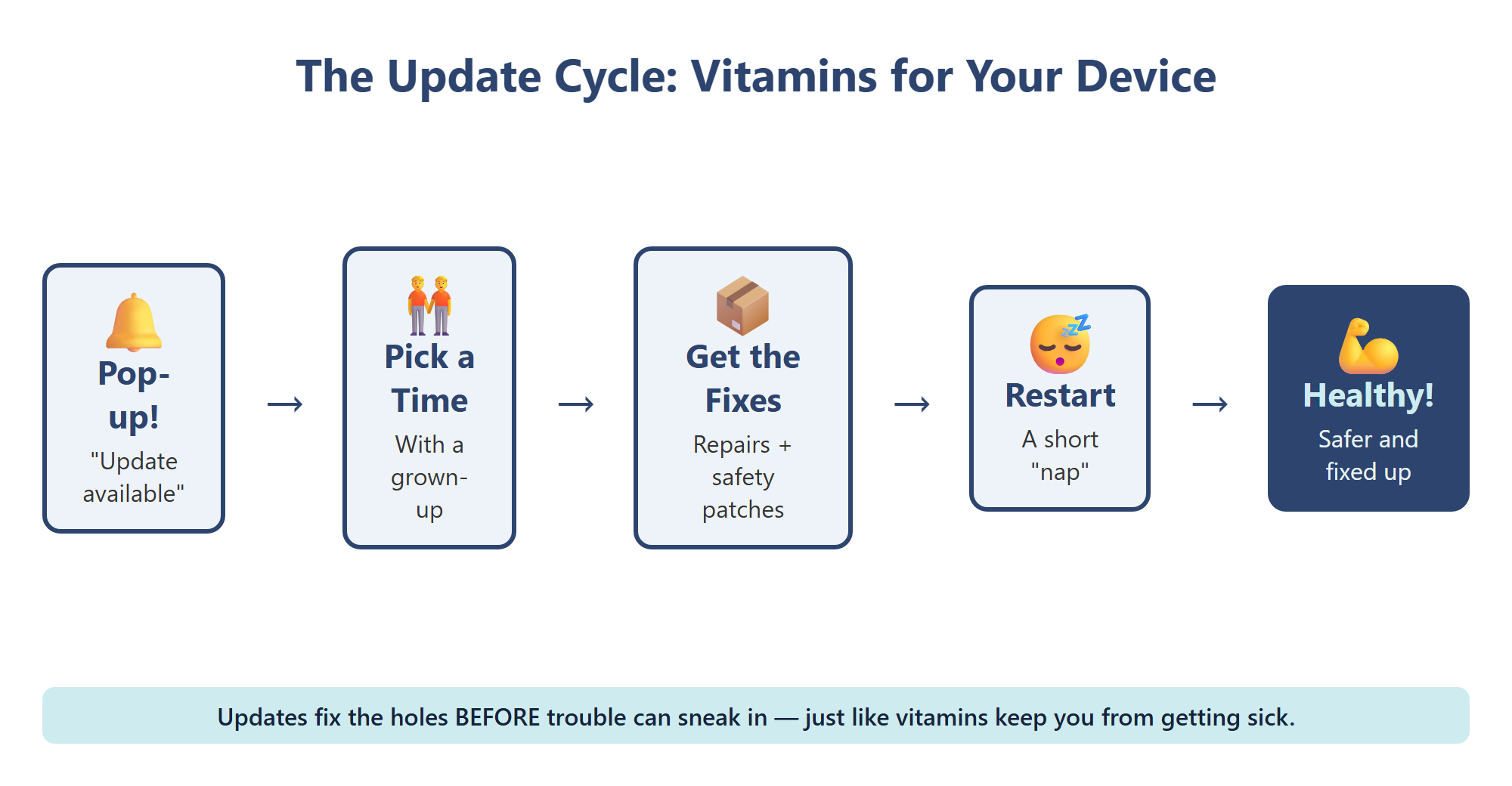
Many school devices update automatically. At home, updating is a grown-up-approved job. When you see an update message, don’t ignore it forever. Tell a grown-up so you can pick a good time, like while the device charges at night.
4.2 — Passwords, Passkeys, and Keys 🔑
Section titled “4.2 — Passwords, Passkeys, and Keys 🔑”Your house has a lock for a simple reason: your stuff is inside. Your accounts have locks too.
Proving It’s You
Section titled “Proving It’s You”When you sign in, the computer is checking who you are. That check is called authenticationauthentication: Proving to a computer that you are really you, for example with a password, a fingerprint, or a passkey.. Once you are in, the computer also decides what you are allowed to do. A student account can open class lessons, but only the teacher’s account can change grades. Proving who you are gets you in the door. Permission decides which rooms you may enter.
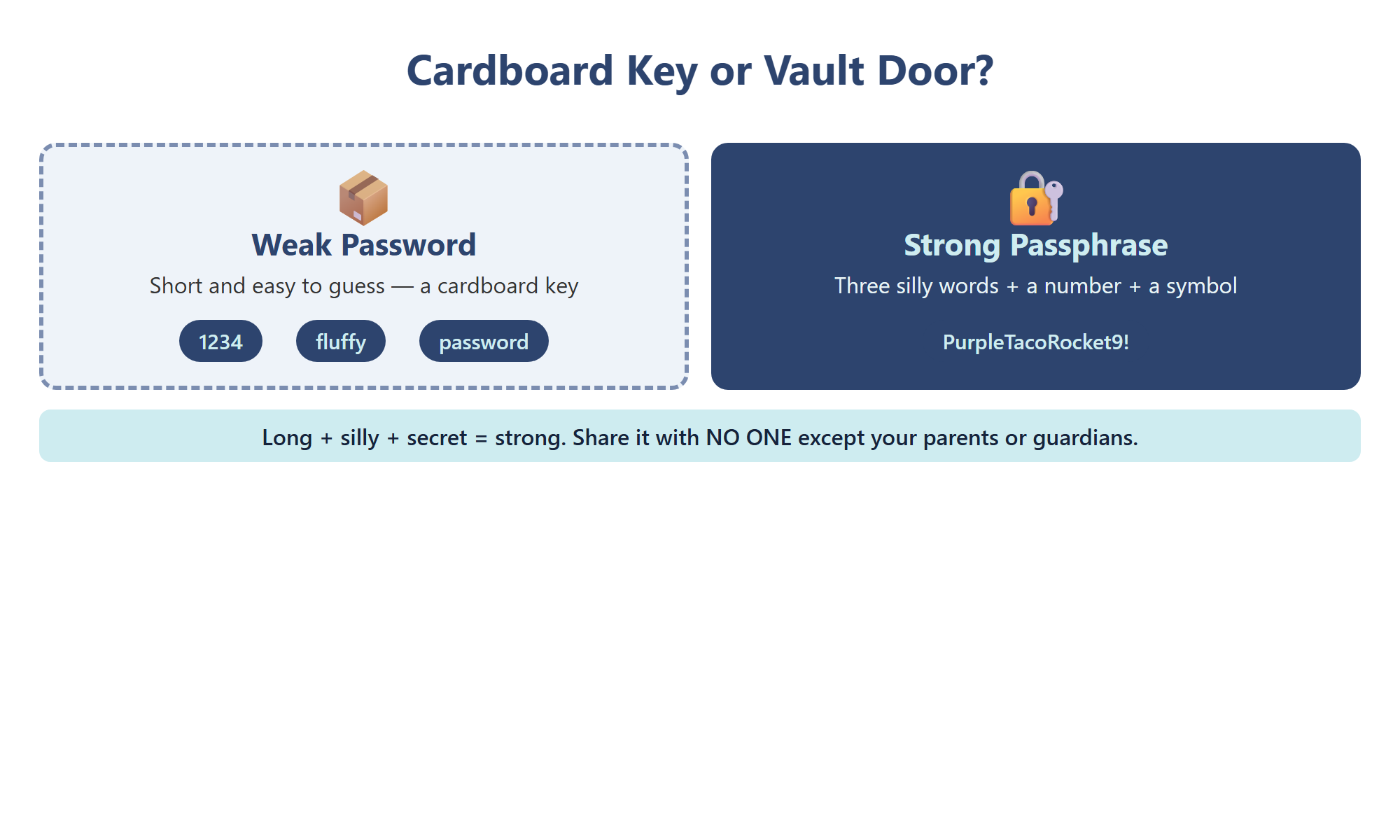
A passwordpassword: A secret word or phrase that unlocks an account and proves it belongs to you. is the most common key. A strong password is long, hard to guess, and easy for you to remember. The best trick is a passphrasepassphrase: A long password made from several random words squished together, like PurpleTacoRocket.: pick three silly words that don’t belong together and squish them into one, like PurpleTacoRocket. Add a number and a symbol, and you have built a vault door.
Where Passwords Fall Short
Section titled “Where Passwords Fall Short”Even good passwords have problems:
- They can be guessed. Programs can try millions of guesses quickly, so short ones fall fast.
- They get reused. If one password opens many accounts, losing it once opens them all.
- They can be tricked out of you. A fake website can look real, and people type their password right into it.
That is why the key rules matter: different accounts get different passwords, and passwords stay secret from everyone except your parents or guardians.
Passkeys: A Key That Stays Home
Section titled “Passkeys: A Key That Stays Home”A newer kind of key is called a passkeypasskey: A way to sign in without typing a password. A secret key stays on your device, and you unlock it with your face, fingerprint, or screen lock.. With a passkey, there is nothing to type and nothing to remember. A secret key is saved on your device, and you unlock it with your face, your fingerprint, or your device’s screen lock. Your face or fingerprint stays on your device; it is not sent to the website.
Passkeys fix the three problems. They can’t be guessed, every account gets a different one automatically, and a passkey only works with the real website it was made for. A fake website can’t get it. Apple, Google, and Microsoft all support passkeys now. Setting one up is a job for a grown-up, but it helps to know why they are safer.
4.3 — Tricky Messages and Pop-Ups 🎣
Section titled “4.3 — Tricky Messages and Pop-Ups 🎣”Not every danger tries to break the lock. Some just ask you to open the door, politely and with a big smile.
Four Red Flags
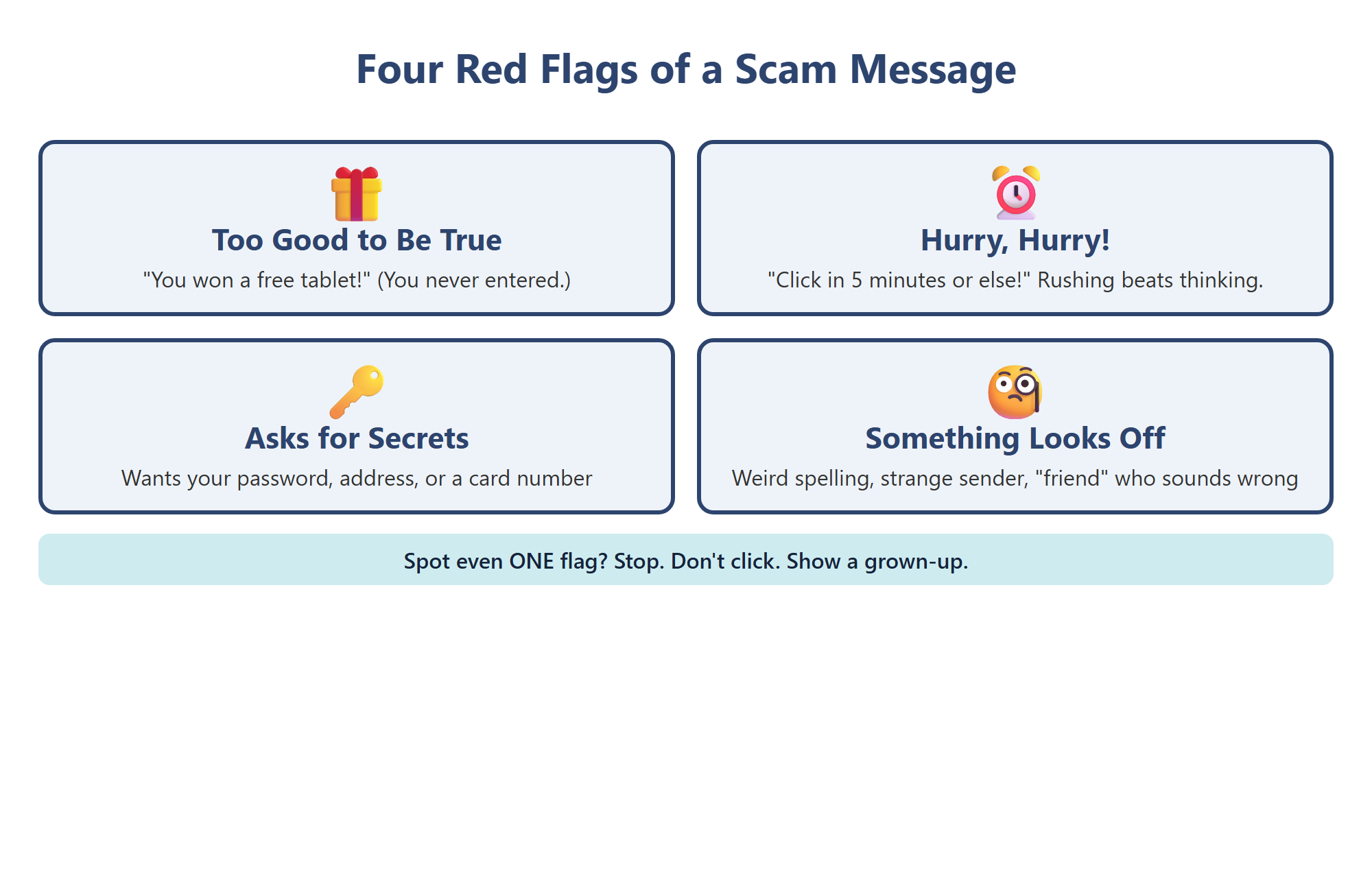
Section titled “Four Red Flags”A scamscam: A trick message, website, or pop-up that lies to you so you will give away information, click something harmful, or lose money. is a message that lies to you on purpose. Scams almost always wave the same red flags:
- Too good to be true. “You won a free tablet!” You didn’t enter a contest.
- Hurry, hurry! “Click in 5 minutes or lose your account!” Rushing stops calm thinking.
- Asks for secrets. Passwords, codes, addresses, or a parent’s card number.
- Something looks off. Strange spelling, a weird sender, or a “friend” who doesn’t sound like themselves.
Bots Can Make It Feel Personal
Section titled “Bots Can Make It Feel Personal”Many scam messages are not typed by a person. Computer programs called bots can send the same trick to millions of people at once. Some bots, including ones powered by AI, can add your name, mention a game you really play, and write in a friendly voice, so the message feels written just for you. Feeling personal does not make it real.
Fake Pop-Ups
Section titled “Fake Pop-Ups”A pop-uppop-up: A small window that suddenly appears on the screen. Some are real alerts, but fake ones try to scare or trick you. is a window that suddenly appears on the screen. Some are real, like a reminder from your calendar. Fake ones might flash, beep, and say “Your computer has a virus! Call this number now!” Real companies don’t put phone numbers in scary pop-ups. Don’t click inside it, not even the X. Show a grown-up.
Stop. Don’t Click. Show a Grown-Up.
Section titled “Stop. Don’t Click. Show a Grown-Up.”When you spot even one red flag, stop, don’t click, and show a grown-up. To check if a message is real, go around it: ask your friend in person, or have a grown-up open the real app the normal way. Never use a link or phone number inside the message to check it. The scammer controls everything inside the message, but not the path you choose.
Spotting a scam and telling a grown-up is not being a tattletale. Grown-ups get these same tricky messages, and even smart adults get fooled sometimes. When you speak up, you are the security guard for your whole family.
4.4 — Caring for Your Device 🧹
Section titled “4.4 — Caring for Your Device 🧹”Updates and passwords protect a computer’s software. But the hardware you can touch needs care, too. A dropped tablet, a spilled drink, or a battery left in a hot car can cause problems that no update can fix. Good care makes a device last for years instead of months.
Batteries and Handling
Section titled “Batteries and Handling”Most devices run on a lithium-ion battery. Batteries last longer when you treat them well:
- Use the charger that came with the device, or one a grown-up says is safe.
- Charge on a hard, cool surface, not on a bed or under a pillow.
- Keep devices away from water, hot cars, and direct sun.
- Carry a device with two hands and keep food and drinks away from it.
If a device is hot, cracked, swollen, smoking, or sparking, stop using it right away. Don’t touch the inside. Get a grown-up. A swollen battery can push the screen or case outward, and it needs an expert.
Keep It Clean, the Safe Way
Section titled “Keep It Clean, the Safe Way”Screens and keyboards collect dust and fingerprints. Cleaning is a grown-up-approved job: turn the device off and unplug it first, then wipe gently with a soft, dry cloth. Never spray water or cleaner straight onto a device, because liquid can sneak inside and damage the parts. Your school may have its own cleaning rules for class devices, so follow them.
Clean-Up Time
Section titled “Clean-Up Time”Storage is the toy box, and toy boxes fill up. When storage is almost full, devices slow down, updates have no room to land, and the camera may not save new pictures. Clean-up day works like tidying your room:
- Remove apps nobody uses.
- Clear out blurry and duplicate photos.
- Empty the trash folder, where deleted files often wait.
- Back up treasures first, to the cloud or a separate drive.
The most important rule: always tidy with a grown-up. A room you cleaned can be un-cleaned, but a deleted file may be gone forever. A grown-up helps you tell “old junk” from “the only copy of the vacation photos.”
Chapter 4 Activity: The Device Health Checkup 🩺
Section titled “Chapter 4 Activity: The Device Health Checkup 🩺”Your Mission: Be a device doctor. You will check a device’s health, build a strong password, and practice spotting scams, all on paper.
Part 1: The Checkup Card
Section titled “Part 1: The Checkup Card”Make a checkup card with four boxes: Updates, Battery, Storage, and Handling. With your teacher, look at a classroom device’s settings screens together. Is an update waiting? How full is the storage? Write what you find, and add one care tip in each box.
Part 2: The Vault Door
Section titled “Part 2: The Vault Door”Write three silly words that don’t belong together, like MuffinRobotCactus. Add a number and a symbol. Is it longer than 12 characters? This is a practice password only. Never use a password you have written on paper, and rip up the paper when you finish.
Part 3: Scam or Real?
Section titled “Part 3: Scam or Real?”Your teacher will hand out printed message cards and pop-up cards. Circle every red flag and label it. For each scam, write what you would do: stop, don’t click, show a grown-up. For each real message, explain how you could check it a different way.
Key Concepts Checklist
Section titled “Key Concepts Checklist”- I can explain what an update is and why devices ask to restart
- I know every app can have vulnerabilities, and updates patch them
- I can explain authentication and why permissions are different for different people
- I can build a strong passphrase and explain three ways passwords fall short
- I can explain how a passkey keeps an account safer
- I can name four red flags and spot a fake pop-up
- I know the rule: Stop. Don’t click. Show a grown-up.
- I can care for a battery and know to stop if a device is hot, swollen, or sparking