
Chapter 2: A Peek Inside the Case
A Peek Inside the Case 🔍
Section titled “A Peek Inside the Case 🔍”The brain, the workbench, and the toy box.
In Chapter 1, you learned that every computer does the same jobs: input, processing, and output. But who does the work? Somewhere inside the case, a team of parts is busy every second the computer is on.
We are going to open the case, but only in our imagination. Opening a real computer is a job for a trained technician. The parts inside can be sharp, can hold electricity, and can break from a single touch of static.
In this chapter, we will meet a super-fast brain, a helper that paints pictures, a workbench for right-now work, a toy box that keeps things safe for later, and the city of roads that connects them all. We will also find out how a computer stores everything using only two numbers, and why the parts would do nothing at all without software. Let’s peek inside!
2.1 — The CPU Is the Brain 🧠
Section titled “2.1 — The CPU Is the Brain 🧠”Deep inside every computer sits a small square chip, often no bigger than a cracker. It is called the CPUCPU: Short for Central Processing Unit. The computer's 'brain,' the chip that follows instructions one step at a time, super fast., which stands for Central Processing Unit. The easy way to remember it: the CPU is the computer’s brain. It does the processing you learned about in Chapter 1.
The Speedy Chef
Section titled “The Speedy Chef”Don’t picture a squishy brain with thoughts and feelings. The CPU is more like a super-speedy chef following a recipe. The chef does not invent the meal. The chef reads each step and does it exactly: crack the egg, stir the bowl, pour the batter. A program is the recipe, and the CPU is the chef who follows it step by step, never skipping, never guessing, and never getting bored.
Billions of Steps
Section titled “Billions of Steps”Here is the mind-blowing part. You might follow one recipe step every few seconds. A modern CPU can follow billions of simple instruction steps every second. That speed is the whole secret behind computers seeming smart. A computer is not clever the way you are. It follows simple instructions so unbelievably fast that amazing things happen, like games, music, and video calls.
All that work makes the CPU warm, so computers use a fan or a metal plate to carry the heat away. That is one reason you should never block the air vents on a laptop by setting it on a pillow or blanket.
A Helper for Pictures: The GPU
Section titled “A Helper for Pictures: The GPU”The CPU has a teammate. The GPUGPU: Short for Graphics Processing Unit. A chip that does thousands of small math jobs at the same time, which makes it great at drawing pictures, games, and video., or Graphics Processing Unit, is a chip built to draw pictures. A game screen is made of millions of tiny dots, and each one needs its color figured out many times every second. The GPU is like a whole crew of painters, each coloring a few dots at the same time. The CPU is one fast chef. The GPU is a big team doing small jobs all at once.
GPUs are so good at doing many small jobs together that scientists now use them for weather forecasts, medical research, and training AI programs.
2.2 — Memory Is the Workbench 🛠️
Section titled “2.2 — Memory Is the Workbench 🛠️”When you build a craft project, you don’t work inside a closed cabinet. You spread everything you need right now on a workbench: scissors, glue, and the paper you are cutting this minute. A big bench lets you work on lots of things at once. A tiny bench gets crowded and slow.
Today’s Work, Close at Hand
Section titled “Today’s Work, Close at Hand”Every computer has a workbench like that. It is called memorymemory: The computer's workbench, also called RAM. It holds what the computer is using RIGHT NOW and clears when the power turns off., and computer people often call it RAM. Memory holds whatever the computer is using right now: the game level you are playing, the video you are watching, and the drawing you have not saved yet.
Why does the computer need a workbench? Because the CPU is so fast that it can’t wait around. If the chef had to walk to the basement for every egg, dinner would take all night. Memory keeps today’s work right next to the CPU, so the brain never has to stop and wait. When too many apps are open, the bench gets crowded, and the computer may slow down.
When the Power Goes Off
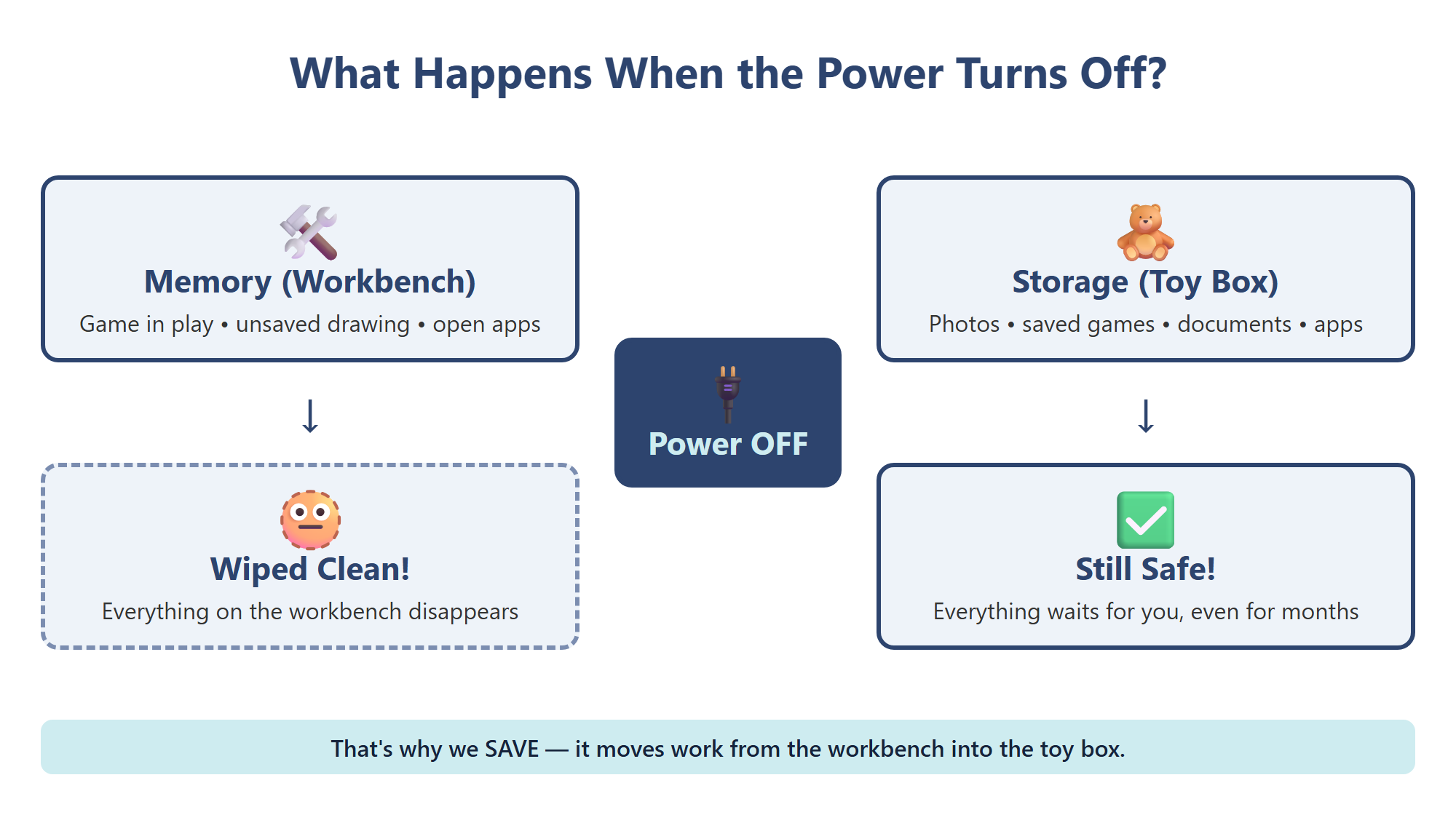
Section titled “When the Power Goes Off”Memory has one big catch: when the power turns off, the workbench is wiped clean. Everything on it disappears, like a craft table cleared at the end of class. If you made something wonderful but never put it somewhere safe, it is gone.
Ones and Zeros
Section titled “Ones and Zeros”How does a computer hold anything at all? Inside its chips are billions of tiny switches, and each switch can only be on or off, like a light switch. Computers write “on” as 1 and “off” as 0. One single on-or-off switch is called a bitbit: The smallest piece of computer information: one tiny switch that is either on (1) or off (0)..
One bit can’t say much. But put eight bits together, and you get a byte, which is enough to stand for one letter. The letter A, for example, can be stored as the byte 01000001. Every photo, song, and game is really a giant pattern of ones and zeros. This way of counting with only 1 and 0 is called binary.
2.3 — Storage Is the Toy Box 🧸
Section titled “2.3 — Storage Is the Toy Box 🧸”At the end of playtime, you don’t leave toys scattered on the table. You put them in the toy box, close the lid, and they wait for tomorrow. Every computer has a toy box too.
Safe for Later
Section titled “Safe for Later”The toy box is called storagestorage: The computer's toy box, where photos, games, apps, and files are kept safe for later, even when the power is off., and its job is to keep things for later. Storage holds your photos and videos, your saved game progress, your documents and drawings, and the apps themselves. Its superpower is that storage keeps everything, even with the power off. Turn the computer off for a night, a week, or a whole summer, and your things are right where you left them.
Most new devices use a kind of storage called a solid-state drive, or SSD, which stores bits in chips with no moving parts. Many older computers used a hard drive, which stores bits on a spinning disk.
The Whole Team at Work
Section titled “The Whole Team at Work”Now the trio is complete:
- The CPU is the brain. It follows instructions super fast.
- Memory is the workbench. It holds what you are using right now and clears when the power goes off.
- Storage is the toy box. It keeps everything safe for later.
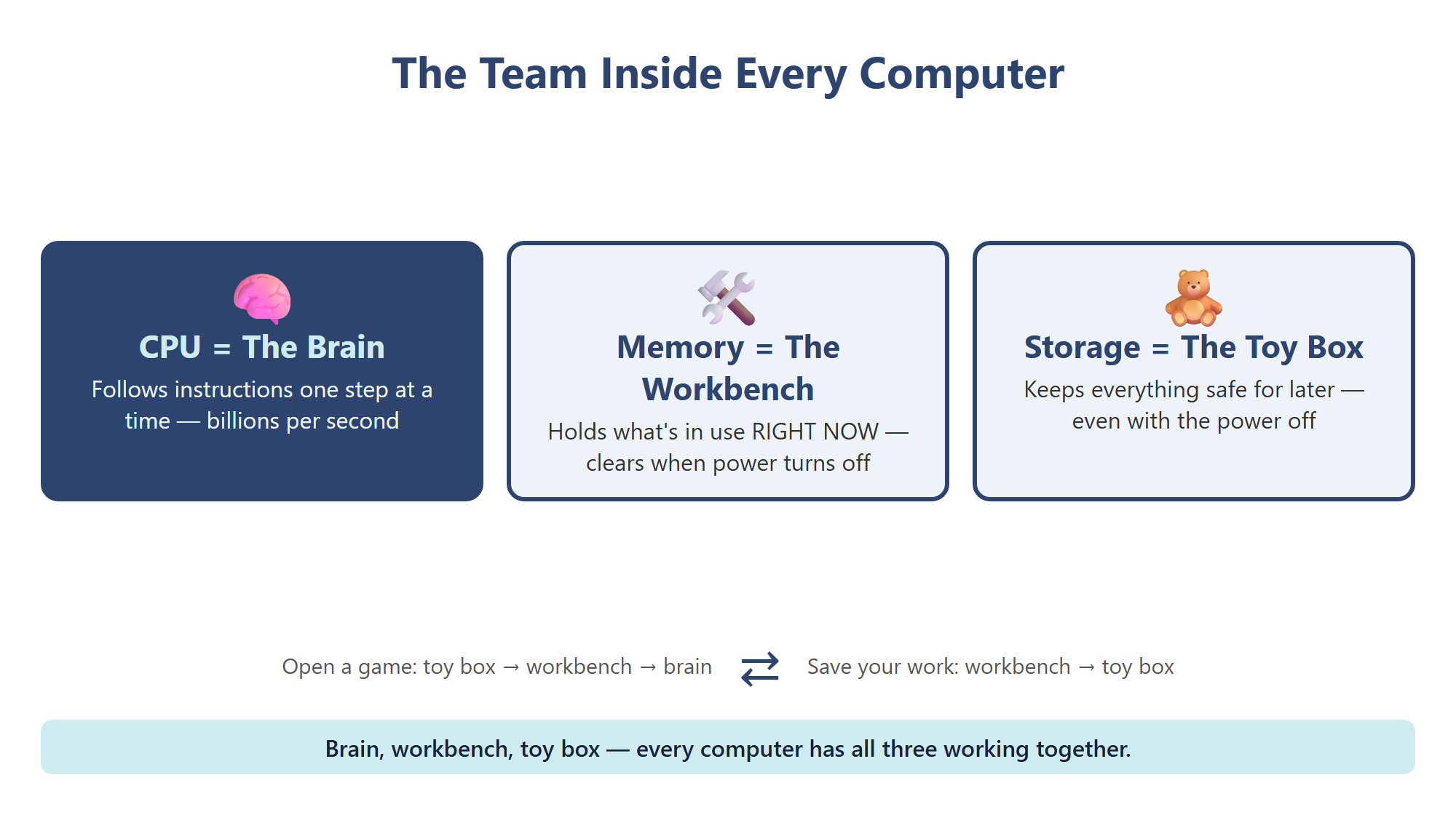
When you open a game, the computer takes it out of the toy box and spreads it on the workbench so the brain can work with it fast. When you press Save, your work travels the other way, off the workbench and into the toy box.
When the Toy Box Fills Up
Section titled “When the Toy Box Fills Up”Storage is measured in bytes. Because files are big, we use bigger words: a gigabyte is about a billion bytes. A song might take a few million bytes, and a long movie can take a few gigabytes. When a tablet says “Storage almost full,” its toy box is stuffed. In Chapter 4, you will learn how to tidy it, always with a grown-up.
2.4 — Hardware and Software Work Together 🧩
Section titled “2.4 — Hardware and Software Work Together 🧩”We have met the brain, the painter, the workbench, and the toy box. But how do they talk to each other? And how does each part know what to do?
A City of Roads
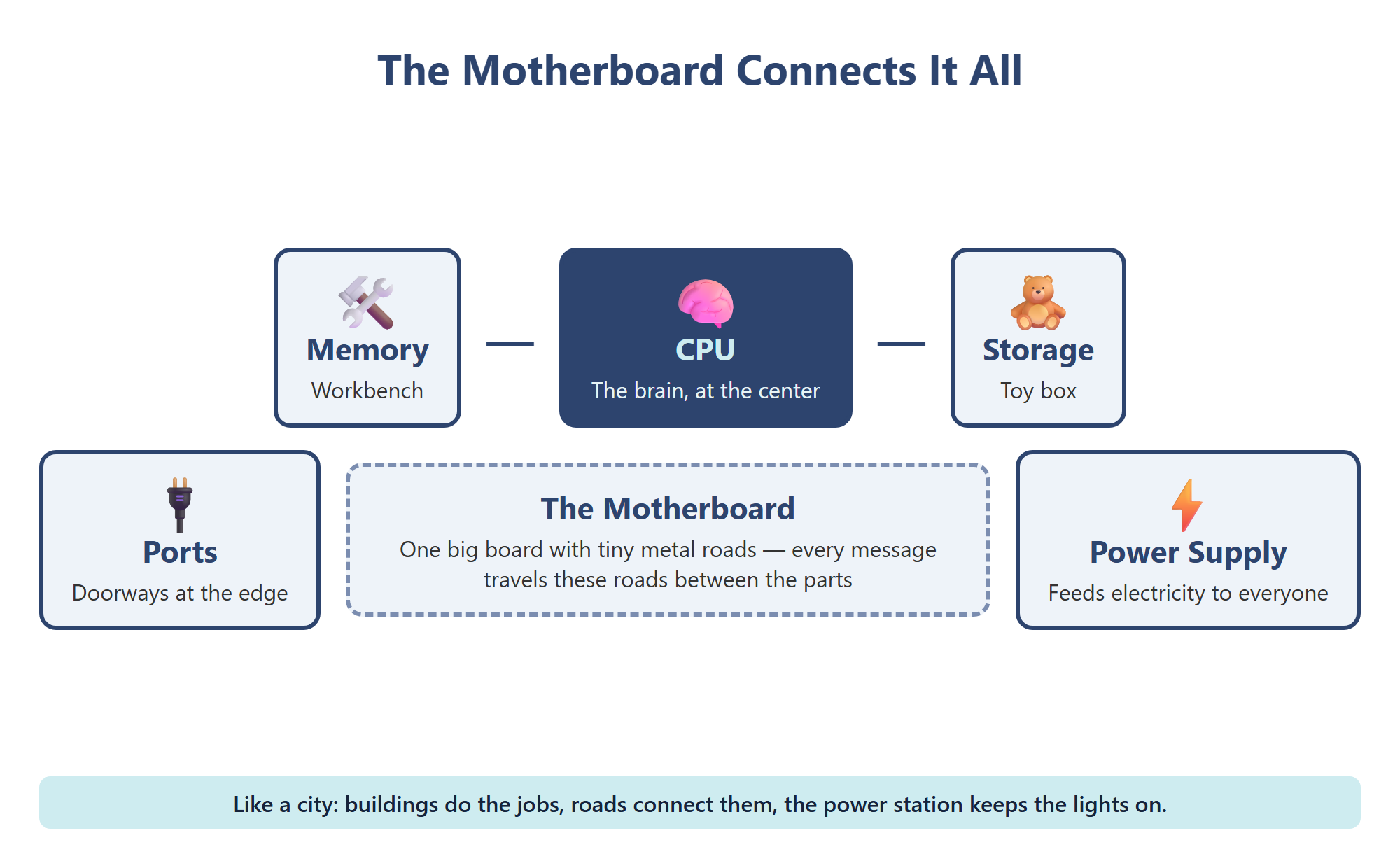
Section titled “A City of Roads”The motherboardmotherboard: The big board inside a computer that every other part plugs into. Its metal lines connect the parts so they can work together. is a large, flat board that every other part plugs into. Look closely at a picture of one and you will see thin metal lines everywhere, like tiny roads. Those lines carry information between the CPU, memory, storage, and the ports from Chapter 1.
Think of the motherboard as a city. The CPU is city hall, memory and storage are busy buildings, and the ports are the city gates. The power supply is the power station. It takes electricity from the wall or the battery and feeds just the right amount to every part.
Hardware Needs Software
Section titled “Hardware Needs Software”Every part you can touch, from the keyboard to the motherboard, is called hardwarehardware: The physical parts of a computer that you can touch, like the screen, keyboard, CPU, and motherboard.. But hardware alone does nothing. It needs instructions. The instructions are called softwaresoftware: The programs and apps that tell the hardware what to do. You can't touch software, but you can see what it does.. If hardware is a piano, software is the sheet music. You need both to hear a song.
The most important software on any device is the operating systemoperating system: The main software that runs a device. It starts the computer, manages the hardware, and lets apps run.. It wakes the computer up, manages the hardware, and lets apps run. Different devices use different operating systems:
| Device | Common Operating Systems |
|---|---|
| Laptops and desktops | Windows, macOS, ChromeOS, Linux |
| Phones and tablets | Android, iOS, iPadOS |
| TVs, game consoles, watches | Their own built-in operating systems |
All of them do the same main job: they are the manager between you, your apps, and the hardware. Apps are programs that do one kind of task, like drawing, reading, or a game. When you tap an app, the operating system finds it in storage, puts it on the memory workbench, and lets the CPU follow its instructions.
Chapter 2 Activity: Build-a-Computer Poster 🖍️
Section titled “Chapter 2 Activity: Build-a-Computer Poster 🖍️”Your Mission: Build a computer out of paper and show how hardware and software work together.
Part 1: Make the Parts
Section titled “Part 1: Make the Parts”Draw or cut out paper pieces for a CPU, a GPU, memory, storage, a power supply, and a few ports. Label each one and add a small icon: a brain, a paintbrush, a workbench, a toy box, a lightning bolt.
Part 2: Build the Motherboard
Section titled “Part 2: Build the Motherboard”On a big sheet of paper, draw a motherboard. Glue each part onto it and draw roads connecting the CPU to every other part. Put the ports along the edge, where the city gates belong. In one corner, write the name of the operating system your class devices use.
Part 3: Follow a Click
Section titled “Part 3: Follow a Click”Draw arrows to show what happens when someone opens a drawing app and saves a picture: from the input, to storage, to memory, to the CPU, to the screen, and back to storage. Use a different color for each step. Present your poster and explain each part in one sentence.
Key Concepts Checklist
Section titled “Key Concepts Checklist”- I can explain that the CPU is the brain that follows instructions super fast
- I know a GPU is a helper chip that draws pictures by doing many jobs at once
- I know memory (RAM) is the workbench and clears when the power turns off
- I can explain that a bit is an on-or-off switch, and eight bits make a byte
- I know storage is the toy box that keeps things safe, even with the power off
- I can explain why saving my work matters
- I can explain how the motherboard and power supply connect and feed every part
- I can tell the difference between hardware and software, and name two operating systems